ip
Joe User Guide
Joe is a chatbot that helps you keep track of your tasks. It is user-friendly and easy to use due to its simplistic design.
Quick Start
- Ensure you have Java 11 or above installed in your Computer.
- Download the latest
joe.jarfrom here - Copy the file to the folder you want to use as the home folder for Joe.
- Open a command terminal,
cdto the home folder and runjava -jar joe.jarcommand to run the application. A GUI similar to the below should appear in a few seconds.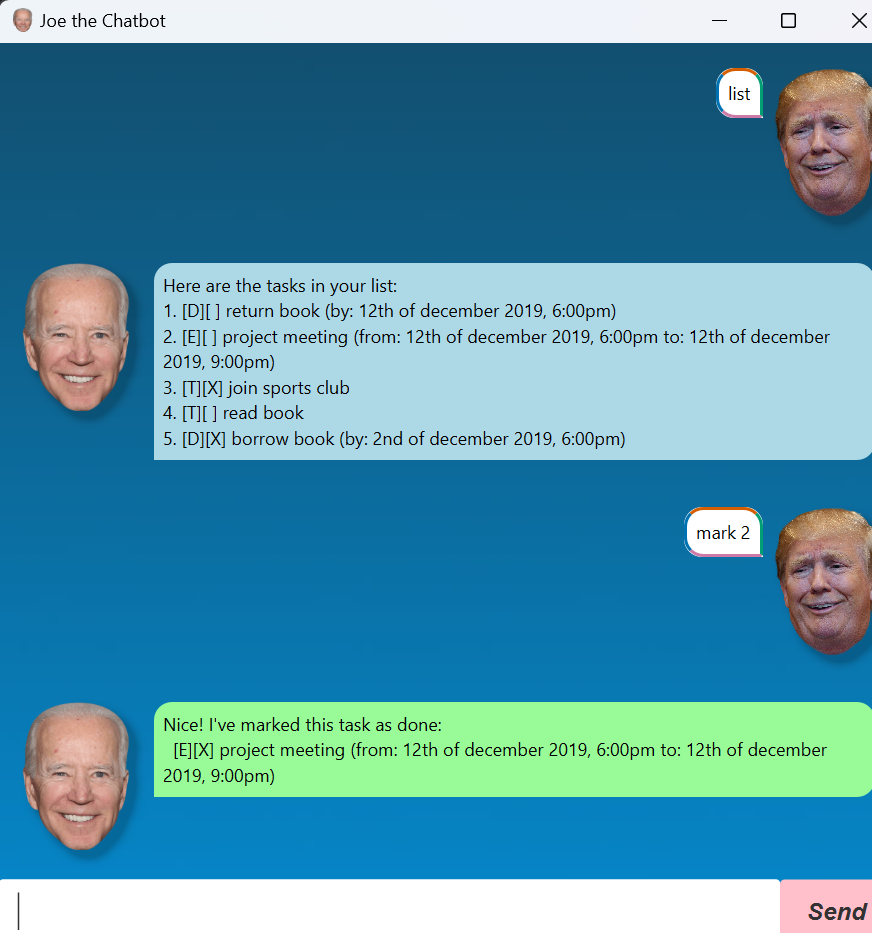
- Type the command in the chat box and press Enter to execute it. Some example commands you can try:
list: Lists all tasks.todo sleep: Adds a todo task with the description “sleep”.delete 1: Deletes the 1st task shown in the current list.bye: Exits the app.
- Refer to the Features below for details of each command.
Features
Joe can help you manage your tasks in a simple and efficient manner. Do note that commands have to strictly adhere to the formats provided or Joe wouldn’t be able to understand you. Here are some of the commands you can use:
Viewing tasks : list
Joe can show you all the tasks you have added.
Example: list
Joe will list all the tasks you have added.
Here are the tasks in your list:
1. [T][ ] sleep
2. [D][ ] finish assignment (by: 17th of September 2025, 11:59pm)
3. [E][ ] project meeting (from: 17th of September 2025, 2:00pm to: 17th of September 2025, 3:00pm)
Marking tasks as done : mark
Joe can help you mark tasks as done.
Example: mark 1
Joe will mark the 1st task as done.
Nice! I've marked this task as done:
 1. [T][X] sleep
Unmarking tasks as not done : unmark
Joe can help you unmark tasks as not done.
Example: unmark 1
Joe will unmark the 1st task as not done.
Ok, I've unmarked this task as not done:
 1. [T][ ] sleep
Deleting tasks : delete
Joe can help you delete tasks.
Example: delete 1
Joe will delete the 1st task.
Noted. I've removed this task:
 1. [T][ ] sleep
Now you have 2 tasks in the list.
Finding tasks : find
Joe can help you find tasks with a specific keyword.
Example: find assignment
Joe will list all tasks with the keyword “assignment”.
Here are the matching tasks in your list:
1. [D][ ] finish assignment (by: 17th of September 2025, 11:59pm)
Adding tasks
Joe can help you manage three types of tasks: todos, deadlines, and events.
Adding a todo task: todo
Example: todo sleep
Joe will add a todo task with the description “sleep”.
Got it. I've added this task:
 1. [T][ ] sleep
Now you have 1 task in the list.
Adding a deadline task: deadline
Example: deadline finish assignment | by 17/09/2025 2359
Joe will add a deadline task with the description “finish assignment” and the deadline “17th of September 2025, 11:59pm”.
Got it. I've added this task:
 2. [D][ ] finish assignment (by: 17th of September 2025, 11:59pm)
Now you have 2 tasks in the list.
Adding an event task: event
Example: event project meeting | from 17/09/2025 1400 | to 17/09/2025 1500
Joe will add an event task with the description “project meeting”, starting at “2:00pm” and ending at “3:00pm” on the “17th of September 2025”.
Got it. I've added this task:
 3. [E][ ] project meeting (from: 17th of September 2025, 2:00pm to: 17th of September 2025, 3:00pm)
Now you have 3 tasks in the list.
Exiting the program : bye
With a simple bye, you could send Joe to sleep.
Example: bye
Joe will bid you farewell and close the application.
Bye. Hope to see you again soon!
Saving the data : save
You can get Joe to manually save your current task list.
Example: save
Joe will save your current task list.
Saving your tasks...
[T][ ] sleep (saved)
[D][ ] finish assignment (by: 17th of September 2025, 11:59pm) (saved)
[E][ ] project meeting (from: 17th of September 2025, 2:00pm to: 17th of September 2025, 3:00pm) (saved)
Your tasks have been succesfully saved.
View available commands : help
Joe can show you all the available commands.
Example: help
Here are the available commands:
bye: ends our interaction :-(
deadline <description> /by <due date/time>: Creates a Deadline task
delete <idx>: Deletes the task at your chosen index
event <description> /from <start date/time> /to <end date/time>: Creates an Event task
find <queryString>: Finds task with descriptions matching your query regex
list: Displays your current tasks
mark <idx>: Marks the task at your chosen index
save : Saves all tasks in your current list to the database that will be automatically loaded during your next session
todo <description>: Creates a ToDo task
unmark <idx>: Unmarks the task at your chosen index
View tasks by dates : query
Joe can show you all the tasks on a specific date.
Example: query 17/09/2025
Joe will list all tasks on the “17th of September 2025”.
Here are the tasks on the 2025-09-17:
1. [D][ ] finish assignment (by: 17th of September 2025, 11:59pm)
2. [E][ ] project meeting (from: 17th of September 2025, 2:00pm to: 17th of September 2025, 3:00pm)
Command Summary
| Action | Format, Examples |
|---|---|
| List | list |
| Mark as done | mark INDEX e.g., mark 1 |
| Unmark as not done | unmark INDEX e.g., unmark 1 |
| Delete | delete INDEX e.g., delete 1 |
| Find Tasks with matching keyword | find KEYWORD e.g., find assignment |
| Todo | todo DESCRIPTION e.g. todo sleep |
| Deadline | deadline DESCRIPTION /by DATE TIME e.g., deadline finish assignment /by 17/09/2025 2359 |
| Event | event DESCRIPTION /from DATE TIME /to DATE TIME e.g., event project meeting /from 17/09/2025 1400 /to 17/09/2025 1500 |
| Bye | bye |
| Save | save |
| Help | \help |
| Query Date | query DATE e.g., query 17/09/2025 |